 Free Internet Speed Test for Zambia Check Your Real Connection Speed Now
Multi opens several parallel connections (closer to real-world browsing/streaming). Single uses one connection (shows the ceiling of a single stream/download).
Press GO to start your free speed test.
Your Network Details
Approximate location based on your public IP address not your precise GPS position.
Your Test History
| Time | Download (Mbps) | Upload (Mbps) | Ping (ms) | Jitter (ms) |
|---|
Whether you're on Zamtel, MTN, Airtel, or Liquid Home fibre in Lusaka, Ndola, or Kitwe, this free browser-based speed test shows your real download speed, upload speed, ping, and jitter in seconds, with no app to install and nothing to sign up for.
Key Takeaways
- Zambia's internet landscape has changed fast over the last few years, with fibre creeping into more Lusaka suburbs, LTE coverage expanding along the line of rail, and mobile data becoming the primary way most people get online.
- This tool runs entirely inside your browser, meaning there's nothing to download and nothing that lingers on your phone or laptop afterward.
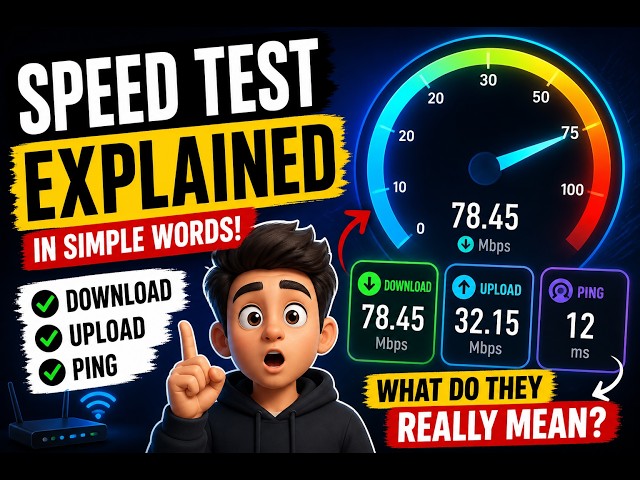
- Download and upload speeds are shown in Mbps, or megabits per second, which measures how much data can move through your connection each second.
- Zambia's connectivity mix includes fixed fibre, ADSL-style fixed wireless, and mobile data over 3G and 4G LTE networks, with 5G still limited mostly to pilot zones in Lusaka.
- Most Zambians access the internet primarily through mobile data bundles, and for good reason: mobile networks reach further than fixed-line infrastructure and require no installation appointment or hardware purchase.
- Before you test, close background apps and browser tabs that might be silently using data, including cloud backup tools, streaming apps left open, and auto-updating software, since these all eat into the bandwidth available for the test.
- If your speed test results are consistently below what you're paying for, start with the basics: reboot your router and modem, and if you're on wifi, check how many devices are currently connected, since smart TVs, phones, and IoT devices left connected in the background all compete for the same bandwidth.
- If you're deciding between providers or considering an upgrade, don't rely solely on advertised package speeds, since real-world performance can differ substantially between ISPs even at similar price points.
Why Run an Internet Speed Test in Zambia
Zambia's internet landscape has changed fast over the last few years, with fibre creeping into more Lusaka suburbs, LTE coverage expanding along the line of rail, and mobile data becoming the primary way most people get online.
But faster infrastructure doesn't automatically mean a faster connection at your desk or in your living room.
A speed test is the only way to see, in real numbers, what your device is actually experiencing right now rather than what your ISP promised when you signed the contract.
Running a quick check before an important video call, before uploading a large file for work, or when a stream keeps buffering tells you immediately whether the problem is your connection, your wifi, or something else entirely.
It also gives you leverage: if you're paying for a 20 Mbps package and consistently getting 6 Mbps at peak hours, a documented speed test result is exactly what you need when you call your ISP's support line.
For freelancers, remote workers, students doing online coursework, and small businesses running card machines or cloud software, knowing your actual internet speed isn't a curiosity, it's a basic operational check, the same way you'd check fuel before a long drive.
How This Speed Test Actually Works
This tool runs entirely inside your browser, meaning there's nothing to download and nothing that lingers on your phone or laptop afterward.
When you hit start, it first measures ping, sending small data packets to a nearby test server and timing how long the round trip takes in milliseconds.
This happens dozens of times in quick succession so it can also calculate jitter, which is the variation between those individual ping times.
Next comes the download phase, where the tool pulls chunks of data from the server as fast as your connection allows, measuring throughput in real time and plotting it on an animated chart so you can watch your speed rise, stabilize, or fluctuate as the test runs.
The upload phase works in reverse, pushing data from your device to the server to measure how quickly you can send information out, which matters far more than most people realize for video calls, cloud backups, and uploading photos or documents.
Throughout the whole process, the tool also detects your ISP name and an approximate location based on your IP address, giving you context for your results without needing you to type anything in.
Because everything runs live in the browser using your actual network path, the numbers you see reflect your real-world connection at that exact moment, not a theoretical lab value.
How to Read Your Mbps, Ping, and Jitter Results
Download and upload speeds are shown in Mbps, or megabits per second, which measures how much data can move through your connection each second. A higher number means faster page loads, quicker downloads, and smoother streaming at higher video quality.
Ping, sometimes called latency, is measured in milliseconds and reflects how long it takes a signal to travel from your device to a server and back.
Lower ping is better: anything under 30ms is excellent for gaming and video calls, 30-60ms is generally fine for everyday use including calls, and anything above 100ms will start to feel noticeably laggy in real-time applications, even if your Mbps numbers look healthy.
Jitter, also in milliseconds, measures how consistent that ping is over time.
A connection with an average ping of 40ms but jitter of 80ms will actually feel worse for calls and games than a steady 60ms ping with 5ms jitter, because the inconsistency causes stutters and dropouts even when the average looks acceptable.
Together, these four numbers tell a complete story: Mbps tells you about capacity, ping tells you about responsiveness, and jitter tells you about consistency. A connection that's fast but unstable can be more frustrating day to day than one that's simply modest but steady.
Typical Internet Speeds and ISPs in Zambia
Zambia's connectivity mix includes fixed fibre, ADSL-style fixed wireless, and mobile data over 3G and 4G LTE networks, with 5G still limited mostly to pilot zones in Lusaka.
Zamtel, MTN Zambia, and Airtel Zambia dominate the mobile data market, while Liquid Home, Zamtel's fibre offering, Hai Telecommunications, and a handful of smaller ISPs serve fixed-line fibre customers primarily in Lusaka, Kitwe, Ndola, and other Copperbelt towns.
Mobile LTE speeds in well-covered urban areas commonly range from 8 to 25 Mbps download during off-peak hours, dropping noticeably during evening peak times when networks get congested.
Fibre connections in serviced Lusaka suburbs can reach 20 to 100 Mbps or higher depending on the package, offering far more consistency than mobile data since they aren't affected by tower congestion or weather in the same way.
Rural and peri-urban areas outside the main line-of-rail corridor still rely heavily on 3G or basic 4G with more variable coverage, and speeds there can be considerably lower and less predictable.
Because coverage and speed vary so much by neighborhood and even by which side of a building you're on, running your own test is far more useful than relying on marketing claims or a friend's experience across town.
Mobile Data vs Fixed Broadband: Which Is Right for You
Most Zambians access the internet primarily through mobile data bundles, and for good reason: mobile networks reach further than fixed-line infrastructure and require no installation appointment or hardware purchase.
For light use like WhatsApp, browsing, and social media, mobile data is often perfectly sufficient and far more flexible, since you can top up as needed without a monthly contract.
However, mobile speeds fluctuate significantly based on how many people are connected to the same tower, your physical distance from it, and even the weather.
Fixed fibre or wireless broadband, by contrast, gives you a dedicated line into your home or office, which means far steadier speeds regardless of what your neighbors are doing on their own connections, and typically much better upload performance, an area where mobile networks are usually weakest.
If you work from home, run a business that depends on cloud tools or video conferencing, or have multiple people in the household streaming and gaming simultaneously, fixed broadband where available is almost always the better long-term investment despite the higher upfront cost of installation.
Running a speed test on both your phone's mobile data and your home wifi separately is a smart way to decide which one to rely on for which tasks, or whether it's worth paying for both.
Tips to Get a Faster, More Accurate Result
Before you test, close background apps and browser tabs that might be silently using data, including cloud backup tools, streaming apps left open, and auto-updating software, since these all eat into the bandwidth available for the test.
If you're testing wifi, sit as close to the router as possible with minimal walls or obstructions between you and it, since wifi signal degrades quickly with distance and interference from concrete walls, which are common in Zambian homes and offices.
Where possible, connect your laptop directly to the router with an ethernet cable for the most accurate reading of what your ISP is actually delivering, separate from any wifi weaknesses.
Time of day matters too: testing during peak evening hours between 6pm and 10pm, when most households and mobile users are online simultaneously, will often show lower speeds than a test run mid-morning, so run a few tests at different times to get a realistic average rather than judging your connection off a single result.
If you're on mobile data, make sure you have a strong signal, ideally 4G/LTE rather than 3G, and consider standing near a window if you're indoors, since building materials can weaken cellular signal noticeably.
Finally, restart your router occasionally, as routers left running for weeks without a reboot can develop performance issues that a simple restart resolves instantly.
Troubleshooting a Slow Connection
If your speed test results are consistently below what you're paying for, start with the basics: reboot your router and modem, and if you're on wifi, check how many devices are currently connected, since smart TVs, phones, and IoT devices left connected in the background all compete for the same bandwidth.
Old or budget routers, especially ones provided free with a basic package, often can't handle modern household demands and may be the actual bottleneck rather than your ISP's network.
If you're on fibre or ADSL, check your router's signal or sync light, since a flickering or red light usually indicates a line issue that no amount of restarting will fix, and it's worth calling your ISP's fault line directly.
For mobile data users, switching your phone off airplane mode and back on, or manually reselecting your network, can force it to reconnect to a stronger nearby tower.
Load shedding and power interruptions, still a reality in parts of Zambia, can also degrade fibre and fixed wireless performance if your ISP's local equipment is running on backup power with limited capacity, so don't rule out infrastructure-side issues during outages.
If problems persist after these checks, running a speed test at different times of day and keeping a simple log of the results gives you concrete evidence to bring to your ISP's customer service rather than a vague complaint that's easy for them to dismiss.
Comparing ISPs in Zambia Using Speed Test Results
If you're deciding between providers or considering an upgrade, don't rely solely on advertised package speeds, since real-world performance can differ substantially between ISPs even at similar price points.
Ask neighbors or colleagues on different networks to run this same speed test at the same time of day you typically use the internet most, and compare not just download speed but also ping and jitter, particularly if video calls or gaming matter to you.
A provider advertising higher Mbps but with poor jitter and inconsistent peak-hour performance may actually serve you worse day to day than a slightly slower but more stable connection.
It's also worth testing more than once across a week, since a single good or bad result isn't representative of long-term reliability, and some ISPs perform noticeably better during off-peak hours than during the evening rush when everyone in the neighborhood is streaming or gaming at once.
For businesses, it's worth testing both download and upload separately since providers that look similar on paper for download speed can differ dramatically on upload, which matters enormously for cloud-based point-of-sale systems, video conferencing, and remote file access.
Speed Test Results for Streaming, Gaming, and Video Calls
Different activities have very different real requirements, and understanding these helps you interpret your results meaningfully rather than just chasing a bigger Mbps number.
Standard-definition video streaming needs roughly 3-4 Mbps, HD streaming needs around 5-8 Mbps, and 4K streaming needs 25 Mbps or more, so if your household streams on multiple devices simultaneously, you need to add these up rather than looking at a single stream's requirement.
Video calls on platforms like Zoom, Teams, or WhatsApp typically need only 2-4 Mbps in each direction, but they're extremely sensitive to ping and jitter, which is why a call can freeze or sound robotic even on a connection with plenty of raw download speed.
Online gaming similarly needs modest bandwidth, often under 5 Mbps, but is highly sensitive to ping and jitter, with competitive multiplayer games needing consistently low, stable ping to avoid lag that affects gameplay.
If you regularly experience choppy calls or laggy games despite a speed test showing decent Mbps numbers, the jitter and ping figures are almost certainly the real culprit, and the troubleshooting steps around wifi placement and router quality above are where to focus your attention rather than upgrading your data bundle.
Data Costs and Testing Responsibly on Limited Bundles
Because a full speed test actually transfers real data to measure throughput accurately, it does use a small amount of your data allowance, typically somewhere between 20 and 40MB per complete test covering download, upload, ping, and jitter measurements.
On an unlimited fibre or wifi connection this is negligible, but if you're testing on a limited mobile data bundle, it's worth being mindful, especially if you plan to run several tests in a row to compare results at different times of day.
A practical approach is to run one test each at morning, afternoon, and evening over a couple of days rather than testing repeatedly within a short window, which gives you a genuinely useful picture of your connection's daily pattern without burning through a meaningful chunk of your bundle.
If data is especially tight, prioritize testing when you're on wifi where possible, and save mobile data tests for moments when you specifically need to diagnose a mobile connectivity problem, such as unusually slow browsing or a failed upload.
Getting the Most Out of This Free Tool
This speed test was built to be genuinely useful for everyday situations in Zambia, whether that's checking your connection before an important online interview, confirming your new fibre installation is performing as promised, or simply satisfying curiosity about how your Airtel or MTN data compares to a friend's Zamtel line.
Because it requires no signup and no app install, you can bookmark it and run it in seconds whenever you need a fast, honest read of your network's real performance, whether that's checking your home wifi speed, your workplace connection, or your phone's mobile data while out and about.
The live animated charts make it easy to spot patterns at a glance, such as a download speed that starts strong and drops off, which often points to network congestion or router overheating rather than a fundamentally slow plan.
Used regularly, it becomes a simple habit that helps you catch problems early, hold your ISP accountable to what you're paying for, and make informed decisions about whether it's time to upgrade your package, switch providers, or simply reposition your router for a stronger signal around the house.
Frequently Asked Questions
What is a good internet speed in Zambia?
For everyday browsing and social media, 5-10 Mbps download is workable. For HD streaming and video calls, aim for 15-25 Mbps. Households with several people streaming or gaming at once should target 50 Mbps or more if their ISP offers it, particularly on fibre plans in Lusaka or Kitwe.
Why does my speed test result change every time I run it?
Networks are dynamic. Mobile signal strength, the number of devices sharing your wifi, time of day congestion, and even server load on our end can shift results by several Mbps between runs. Running the test three times at different times of day gives a more honest picture than a single result.
Does this speed test cost data or airtime?
Yes, running a speed test uses a small amount of data, typically 20-40MB per full test, since it actually transfers data to measure your real throughput. If you're on a tight mobile bundle, keep this in mind, though the cost is minor compared to streaming a few minutes of video.
Why is my upload speed so much lower than my download speed?
Most Zambian ISPs, especially LTE and ADSL-style connections, are provisioned asymmetrically, meaning far more capacity is allocated to downloads than uploads. This is normal and by design, since most home use is downloading, but it can be limiting for video calls or uploading large files.
Is this speed test tool free and does it require an app?
Yes, it's completely free with no signup, no email, and no app install. It runs entirely in your mobile or desktop browser, so you can test your connection on Chrome, Safari, or any modern browser in a few taps.
Why is my speed test result different from what my ISP advertises?
Advertised speeds are theoretical maximums under ideal conditions. Real results are affected by network congestion, wifi signal strength, the number of connected devices, server distance, and even your device's own hardware. A result within 60-80% of your advertised plan is generally considered normal.
Should I test on wifi or with a cable connection?
For the most accurate picture of your actual internet connection's capability, test with a device connected directly via ethernet cable if possible. If you only have wifi, test close to the router with minimal obstructions, since wifi signal loss is one of the most common causes of disappointing results in Zambian homes.
What does jitter mean and why does it matter for calls and gaming?
Jitter is the variation in delay between data packets arriving. High jitter causes choppy video calls, robotic-sounding audio, and lag spikes in online games, even if your average ping looks fine. Keeping jitter under 20-30ms is important for smooth real-time communication.