 Free Internet Speed Test for Guyana Check Your Download, Upload, Ping and Jitter Instantly
Multi opens several parallel connections (closer to real-world browsing/streaming). Single uses one connection (shows the ceiling of a single stream/download).
Press GO to start your free speed test.
Your Network Details
Approximate location based on your public IP address not your precise GPS position.
Your Test History
| Time | Download (Mbps) | Upload (Mbps) | Ping (ms) | Jitter (ms) |
|---|
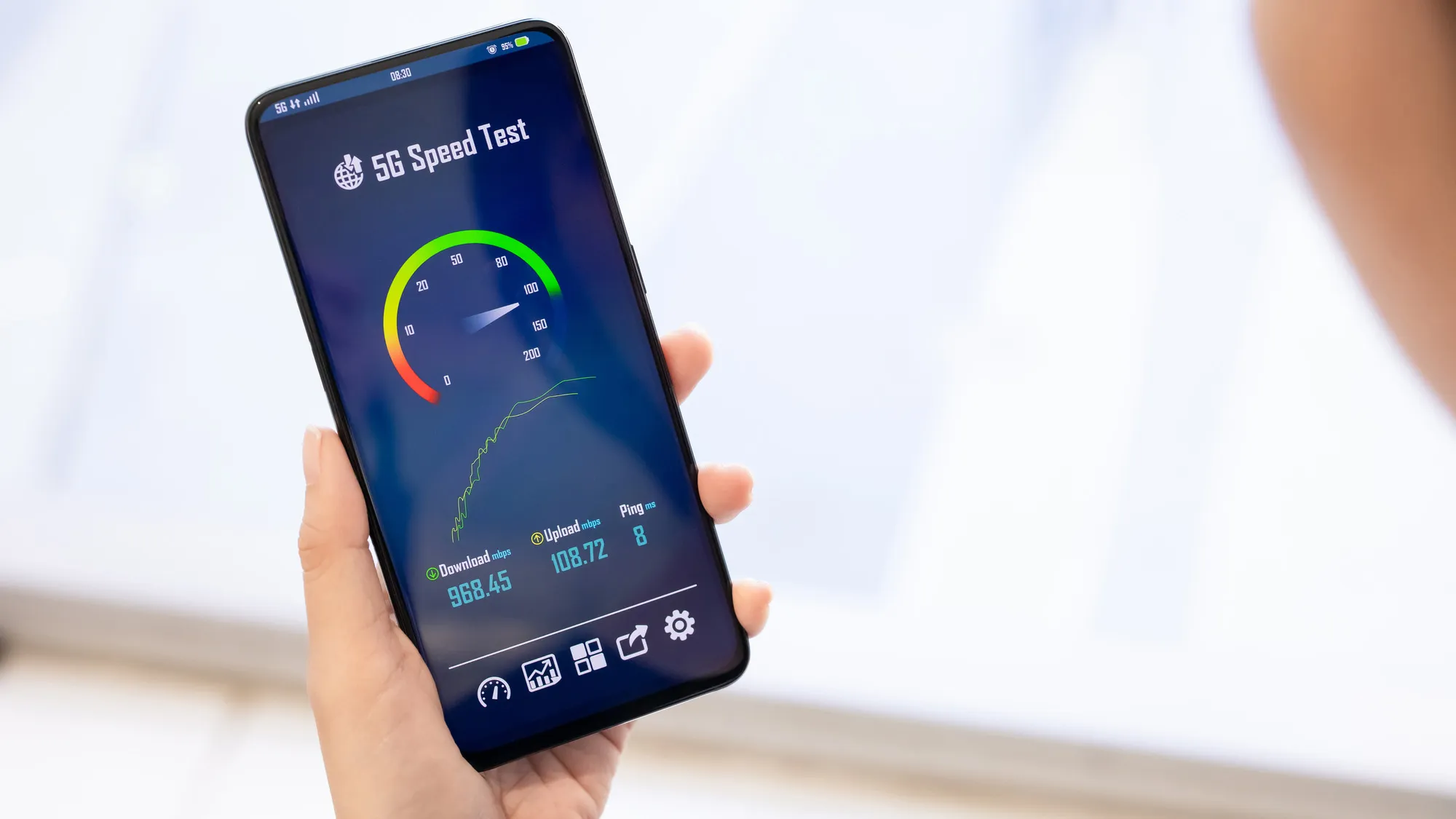
Whether you're on GTT, Digicel, or E-Networks, our free browser-based speed test gives you an accurate, real-time read on your connection in seconds, no downloads, no signup, no hassle.
Key Takeaways
- Internet speed test in Guyana isn't just a curiosity, it's the fastest way to hold your provider accountable and troubleshoot problems before they cost you time or money.
- Our tool runs entirely in your browser using modern web technology, so there's nothing to install and nothing left behind afterward.
- Once your test finishes, you'll see four core numbers, and understanding what each one means turns raw data into something you can act on.
- Guyana's internet landscape has changed significantly over the past several years, but it still varies a great deal depending on where you live.
- For a large share of Guyanese internet users, especially outside Georgetown, mobile data isn't a backup, it's the primary connection.
- A few small adjustments before you test can mean the difference between a misleading result and one you can actually trust.
- If your speed test results are consistently below what you're paying for, work through a few common causes before assuming the problem is entirely on your ISP's end.
- Not all internet plans that sound similar on paper perform the same in practice, and speed test results are the most reliable way to cut through marketing claims when comparing GTT, Digicel, and E-Networks.
Why Run an Internet Speed Test in Guyana
Internet speed test in Guyana isn't just a curiosity, it's the fastest way to hold your provider accountable and troubleshoot problems before they cost you time or money.
With more Guyanese households relying on home broadband for remote work, online classes, streaming, and video calls to family overseas, knowing your real numbers matters more than ever.
Many people assume their connection is fine simply because pages load and videos play, but a proper speed test wifi check often reveals a very different story: download speeds well below the advertised plan, upload speeds too weak for smooth video calls, or ping and jitter spikes that explain why your Zoom calls freeze during peak hours.
Running a test before calling your ISP gives you hard evidence, a timestamped result showing download speed, upload speed, ping, and jitter, that support staff can't easily dispute.
It's also useful when you're shopping for a new plan or comparing GTT against Digicel or a local E-Networks package, since advertised speeds and real-world speeds don't always match, particularly in areas outside Georgetown where infrastructure is thinner.
Beyond troubleshooting, testing regularly builds a picture over time.
If you test my internet speed every week or so and log the results, you'll start noticing patterns, whether your connection consistently dips in the evening, whether a specific device or room in your house pulls worse WiFi speed test numbers, or whether a recent router reboot actually helped.
That kind of insight turns a vague sense that "the internet feels slow" into an actionable, specific complaint you can bring to your provider, or a clear signal that the fix is on your end, not theirs.
How the Speed Test Actually Works
Our tool runs entirely in your browser using modern web technology, so there's nothing to install and nothing left behind afterward. When you hit start, the test moves through several stages in quick succession.
First it measures ping by sending small data packets to a nearby test server and timing how long the round trip takes; this happens dozens of times in rapid succession so it can also calculate jitter, the variation between those individual ping times.
Low, stable ping and jitter numbers mean your connection responds quickly and consistently, which is exactly what real-time applications like video calls and online gaming need.
Next comes the download phase, where the tool opens multiple simultaneous connections to a test server and pulls data streams as fast as your connection allows, measuring throughput in megabits per second (Mbps) and plotting it on a live animated chart so you can watch your speed ramp up and stabilize in real time.
The upload phase works the same way in reverse, pushing data from your device to the server to measure how fast you can send information out, which is the number that matters most for uploading photos, backing up files to the cloud, or being seen clearly on a video call.
Throughout the whole process, the tool also identifies your internet service provider and an approximate location using your connection's IP address information, so the results you see are automatically labeled with useful context, no manual entry required.
Because everything runs client-side in the browser using your device's own network stack, the numbers reflect exactly what your device is experiencing at that moment, not a simulated or cached estimate, which is what makes it a genuine, trustworthy bandwidth test rather than a rough guess.
How to Read Your Results: Mbps, Ping, and Jitter Explained
Once your test finishes, you'll see four core numbers, and understanding what each one means turns raw data into something you can act on.
Download speed and upload speed are both measured in megabits per second, written Mbps; this is a measure of how much data can move per second, not to be confused with megabytes (MB), which is roughly eight times larger and used for file sizes.
A 50 Mbps download speed means, in ideal conditions, up to 50 megabits, about 6. 25 megabytes, can arrive every second.
Ping, measured in milliseconds (ms), tells you how long it takes a signal to travel to a server and back; under 20ms is excellent, 20-50ms is good for most uses including gaming, and anything consistently above 100ms will feel laggy in real-time applications even if your download speed looks strong.
Jitter, also in milliseconds, measures the consistency of that ping over time; a jitter value under 5ms is stable and ideal, while jitter above 20-30ms means your connection is unpredictable, which causes the stuttering and dropped audio you sometimes hear on WhatsApp or Zoom calls even when the call doesn't fully disconnect.
It's worth understanding that these four numbers don't always move together. You can have a fast download speed but poor ping and jitter, common on satellite or heavily congested connections, which is why a video call can lag even while a movie streams perfectly.
Conversely, a lower-speed connection with excellent ping and jitter can feel snappier for browsing and calls than a faster one with erratic latency.
When comparing your results against your plan, remember that ISPs typically advertise a maximum theoretical speed; getting 80-90% of that number consistently is considered a healthy, well-performing connection, while regularly seeing less than half your advertised speed is a legitimate reason to investigate further or contact your provider.
Typical Internet Speeds and Connectivity in Guyana
Guyana's internet landscape has changed significantly over the past several years, but it still varies a great deal depending on where you live.
In Georgetown and other coastal urban centers, fibre-to-the-home and fixed wireless plans have pushed typical advertised speeds into the 20-100 Mbps range for residential customers, with some premium business-grade plans going higher.
Move further into the regions, toward the Essequibo Coast, Berbice, or the hinterland interior, and the picture shifts: fibre coverage thins out, many households rely on fixed wireless or mobile data as their primary connection, and typical real-world speeds often sit in the single digits to low double digits of Mbps.
This uneven coverage is one of the main reasons speed test results across Guyana vary so widely from one neighborhood to the next, even among customers of the same provider.
GTT remains the longest-established player with the widest fixed-line and fibre footprint, particularly strong in Georgetown, New Amsterdam, and other urban centers.
Digicel has built out a competitive fixed wireless and mobile broadband network that's often the more practical option in areas where laying fibre isn't economical.
E-Networks (through its Sky Broadband and cable offerings) has carved out a strong presence for cable and fibre broadband in and around Georgetown, often competing directly with GTT on speed and price for residential customers.
Because infrastructure investment continues, particularly submarine cable capacity feeding the country's international bandwidth, average speeds have been trending upward year over year, but Guyana still trails many Caribbean and South American neighbors on national average broadband speed, which makes checking your own actual numbers, rather than relying on regional averages or advertised maximums, especially important.
Mobile Data vs Fixed Broadband: Which Matters More in Guyana
For a large share of Guyanese internet users, especially outside Georgetown, mobile data isn't a backup, it's the primary connection.
Digicel and GTT both operate LTE networks that, in areas with good coverage, can rival or exceed the speeds of entry-level fixed broadband plans, which is why understanding the difference between the two matters when you're troubleshooting or shopping around.
Fixed broadband, whether fibre, cable, or fixed wireless, generally offers more consistent speeds because your connection isn't shared with as many nearby mobile users on the same cell tower, and it typically comes with a much stronger upload speed, important for anyone working from home or making video calls.
Mobile data, on the other hand, offers flexibility and is often the only realistic option in areas where fixed infrastructure hasn't reached yet, but its performance is more sensitive to your physical location, the time of day, weather, and how many other people are connected to the same tower.
If you're deciding between the two, or trying to figure out why your phone feels faster than your home WiFi, running the same speed test on both, mobile data with WiFi turned off, and then fixed broadband, gives you a direct, apples-to-apples comparison.
Many households in Guyana now run both simultaneously, using fixed broadband as the default and mobile data as a failover during outages, a sensible approach given that outages tied to weather or maintenance work aren't uncommon.
If your mobile speed test numbers consistently beat your home broadband numbers, it may be worth asking your fixed provider about a plan upgrade or investigating whether your in-home equipment is the bottleneck rather than the incoming connection itself.
Tips to Get More Accurate, Faster Speed Test Results
A few small adjustments before you test can mean the difference between a misleading result and one you can actually trust.
First, close other applications and browser tabs that might be using bandwidth in the background, streaming services, cloud backup tools, and auto-updating apps can all quietly eat into your available speed while you're testing.
Second, pause downloads or uploads on any other device connected to the same network, since a bandwidth test measures the speed available to your device at that moment, and other devices actively pulling data will drag your number down.
Third, if you're testing over WiFi, position yourself as close to the router as reasonably possible, ideally in the same room, since walls, distance, and interference from other electronics can cut WiFi throughput significantly even when your actual internet connection is fine.
For the most accurate baseline of what you're actually paying for, connect a laptop directly to your modem or router with an ethernet cable and test that way; this removes WiFi entirely from the equation and shows you your connection's true ceiling.
Fourth, test at more than one time of day.
A single test at 2pm on a quiet Tuesday won't tell you what your connection looks like at 8pm on a Saturday when everyone in your area is streaming, and both numbers are useful for a complete picture.
Finally, run the test two or three times in a row and look at the average rather than trusting a single result, since brief network hiccups or momentary congestion can cause one-off dips that don't reflect your typical, everyday experience.
Troubleshooting a Slow Connection in Guyana
If your speed test results are consistently below what you're paying for, work through a few common causes before assuming the problem is entirely on your ISP's end.
Start with your router: devices that have been running for weeks or months without a restart can slow down noticeably, so a simple power cycle, unplugging it for 30 seconds and plugging it back in, resolves a surprising number of speed complaints.
Check how many devices are connected to your network; smart TVs, phones, laptops, and increasingly smart home devices all draw bandwidth even when idle, and an older router can struggle to manage many simultaneous connections efficiently.
Router placement matters too: keep it elevated, away from thick walls, microwaves, and other electronics, and central to the areas of your home where you actually use the internet, since WiFi signal degrades significantly with distance and obstruction.
If you're on a fixed wireless plan from Digicel or another provider, check whether anything new is blocking the line of sight between your outdoor antenna and the transmission tower, since new construction, tree growth, or even heavy rain can measurably affect signal strength.
Weather is worth mentioning specifically in Guyana's context: heavy rainfall and storms can degrade both fixed wireless and satellite-fed connections temporarily, so if your slow result coincides with bad weather, retest once conditions clear before concluding there's a lasting problem.
If you've ruled out your equipment and the issue persists across multiple days and times, contact your provider with your speed test results in hand, including timestamps, since specific data makes it far easier for their technical team to diagnose whether the issue is local to your line or a broader network problem in your area.
Comparing ISPs in Guyana Using Speed Test Data
Not all internet plans that sound similar on paper perform the same in practice, and speed test results are the most reliable way to cut through marketing claims when comparing GTT, Digicel, and E-Networks.
Rather than relying solely on advertised maximum speeds, which represent best-case scenarios under ideal conditions, look at what real customers in your specific area are experiencing, and better yet, test connections yourself where possible, at a neighbor's or relative's house on a different provider, for example.
Pay attention not just to download speed but to upload speed and latency too, since a provider that wins on download Mbps might lag behind on ping and jitter, which matters enormously if video calls or online gaming are a priority for your household.
Price-per-Mbps is a useful comparison metric once you have real numbers: divide the monthly cost of a plan by its actual, tested download speed rather than its advertised figure, and you'll often find the better-value plan isn't the one with the flashiest advertised number.
It's also worth asking each provider directly about typical speeds for your specific street or neighborhood, since infrastructure quality can vary block by block, especially in older parts of Georgetown or in transitional areas between urban and rural coverage.
Consider contract terms and installation costs alongside speed too; a slightly slower plan with no long-term contract and free installation might be the smarter choice if you're not fully confident in a provider's performance yet and want the flexibility to switch.
Finally, don't treat a single comparison as final, since providers periodically upgrade infrastructure, and a provider that underperformed in your area a year ago may have since improved capacity, so periodic retesting keeps your comparison current.
Speed Test for Gaming, Streaming, and Video Calls
Different online activities depend on different parts of your speed test results, so understanding what you actually need helps you set realistic expectations rather than chasing the highest possible Mbps number.
For streaming video, download speed is what matters most: standard definition needs roughly 3-5 Mbps, HD streaming needs about 5-10 Mbps per stream, and 4K streaming needs 25 Mbps or more, so a household streaming on multiple devices simultaneously should budget accordingly and add these numbers up rather than assuming one number covers the whole home.
For video calls on platforms like Zoom, WhatsApp, or Google Meet, upload speed and, critically, ping and jitter matter just as much as download speed; a call can freeze or drop audio even with fast download speed if jitter is high, since the call requires a steady, low-latency stream in both directions.
For online gaming, ping is king: competitive games are noticeably more playable with ping under 50ms, and jitter above 10-15ms will cause the rubber-banding and lag spikes gamers find most frustrating, often more disruptive than moderate download speed shortfalls.
For remote work specifically, a common and growing use case across Guyana, a stable connection with at least 10-15 Mbps upload is worth prioritizing if your job involves regular video conferencing or uploading large files, since many home broadband plans are heavily skewed toward download speed and leave upload as an afterthought.
If your household mixes several of these activities at once, a teenager gaming while a parent is on a work call while someone else streams, your test results need real headroom above the minimums for any single activity, which is exactly why testing under realistic, multi-device conditions gives a far more useful picture than a single-device best-case test.
When to Retest: Building a Speed Test Habit
A single internet speed test tells you about one moment; a habit of testing regularly tells you a story about your connection over time, and that story is far more useful for making decisions.
Consider testing at three specific moments: right after setup or any equipment change, so you know your true baseline; during what feels like your worst moments, typically evening peak hours, so you know your worst-case reality; and periodically, say monthly, so you catch gradual degradation before it becomes a serious problem.
Keeping even an informal log, a note on your phone with the date, time, and the four key numbers, turns vague frustration ("the internet's been bad lately") into a specific, evidence-backed pattern you can act on, whether that's negotiating with your ISP, deciding it's time to upgrade your plan, or confirming that a recent change, a new router, a plan upgrade, a switch from WiFi to ethernet, actually made a measurable difference.
This habit is particularly valuable in Guyana's evolving connectivity landscape, where infrastructure upgrades are ongoing and providers are actively competing for customers; being able to show, with real data, that your speeds have dropped or that a competitor's advertised plan actually performs better in your area gives you real leverage as a customer.
It also simply removes the guesswork from day-to-day frustration: the next time a video call stutters or a page won't load, a fresh 15-second test tells you immediately whether it's your connection at fault right now, or something else entirely, like the website itself being slow, so you're not wasting time troubleshooting the wrong problem.
Frequently Asked Questions
How do I test my internet speed in Guyana for free?
Just open the speed test page on any phone, tablet, or computer connected to your network and tap Start. Within about 15 seconds it measures your ping, jitter, download speed, and upload speed and displays the results on animated charts. No app install, account, or payment is required.
What is a good internet speed in Guyana?
For everyday browsing and streaming in standard definition, 15-25 Mbps download is workable. For HD streaming, video calls, and multiple devices, aim for 50-100 Mbps. Households with several remote workers or gamers should look for 100 Mbps or more, especially outside Georgetown where fibre availability is patchy.
Why is my WiFi speed test slower than the speed I'm paying for?
WiFi signal loss, an old router, too many connected devices, or distance from the router are the usual culprits. Run the speed test wifi check with a device sitting close to the router, then repeat it with a cable plugged directly into the modem to see how much speed WiFi itself is costing you.
Does this tool show my ISP and location?
Yes. The test automatically detects your internet service provider, such as GTT, Digicel, or E-Networks, along with your approximate location based on your IP address, so you can see exactly which network and region your results apply to.
What's the difference between download speed and upload speed?
Download speed is how fast data moves from the internet to your device, which affects streaming, browsing, and downloads. Upload speed is how fast data moves from your device to the internet, which matters for video calls, cloud backups, and sending large files. Most Guyana broadband plans have much faster download than upload.
What do ping and jitter mean in a speed test?
Ping is the round-trip time, in milliseconds, for a small data packet to reach a server and return; lower is better, especially for gaming and video calls. Jitter measures how much that ping time varies from one moment to the next; high jitter causes choppy calls and laggy games even when download speed looks fine.
Can I run a bandwidth test on mobile data instead of WiFi?
Yes. Turn off WiFi on your phone so it's using Digicel or GTT mobile data only, then run the test. This isolates your cellular connection from your home network, which is useful when troubleshooting whether a problem is your router or your mobile signal.
Why do speed test results vary between morning and evening in Guyana?
Internet speed often drops in the evening, roughly 6pm to 10pm, when more households in your area are streaming and gaming at once, a pattern known as network congestion. Testing at different times of day gives you a realistic picture rather than a single best-case number.